
Studiowide Onovo
  • Home
  • About
  • What We Do
  • Our Work
  • News & Insights
  • Toolkit
  • Guides
  • Contact Us
Search

Explore our work, services, toolkit and insights.

Home/Guides/Marketing Automation

Studiowide Marketing Automation & CRM

Contacts and segmentation

How to build and save an email audience

Use include and exclude filters to build a CRM audience, check sample contacts and save the search for your next email campaign.

What you’ll achieve

Save a reusable audience that includes the right contacts and respects exclusions.

On this page

  • 1. Decide who should receive the email
  • 2. Add and check your filters
  • 3. Save and reuse the audience
  • Example of inviting interested prospects to a demo

To build an email audience in the Studiowide Marketing Automation & CRM system, open Contacts and choose Filter Contacts. Add the criteria that identify who should receive the email, check who should be excluded, then choose Save this search so you can reuse it.

1. Decide who should receive the email

Describe the audience in one sentence. For a product demonstration, you might want to invite people who requested a demo of an inspection system, are eligible for marketing email and haven’t already registered.

2. Add and check your filters

If a contact you expected is missing, follow the campaign audience troubleshooting guide to compare the record with both include and exclude rules before changing the saved search.

  1. In Contacts, select Filter Contacts. Add the tag or field criteria for the audience. Use one group of conditions that must all match when someone needs the right tag and the right product interest.
  2. For a marketing campaign, add the Marketable filter and select the condition for marketable contacts. Check that your audience also follows your team’s rules for using contact preferences and marketing permissions.
  3. Select Show exclude filters to remove people you want to leave out, such as contacts with your event’s Demo registered tag. Select Search to see the results.
  4. Check the total and open a few records. Check one person who should appear and one who should be excluded. If results are too broad, review whether the search is matching all the intended conditions or allowing alternatives.
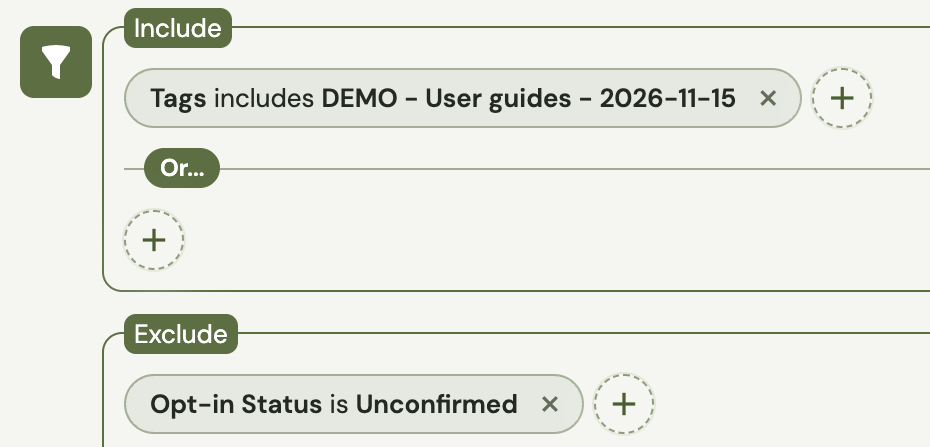
Contacts filters including the demo tag and excluding Unconfirmed opt-in status.
This demo includes a test tag and excludes contacts whose opt-in status is Unconfirmed.

3. Save and reuse the audience

Select Save this search, give it a specific name and select Save. Use Load saved search in Contacts to reopen it. The search reuses the filters and the results can change as contacts gain tags, register or unsubscribe. Check the count and examples again before using it for a campaign.
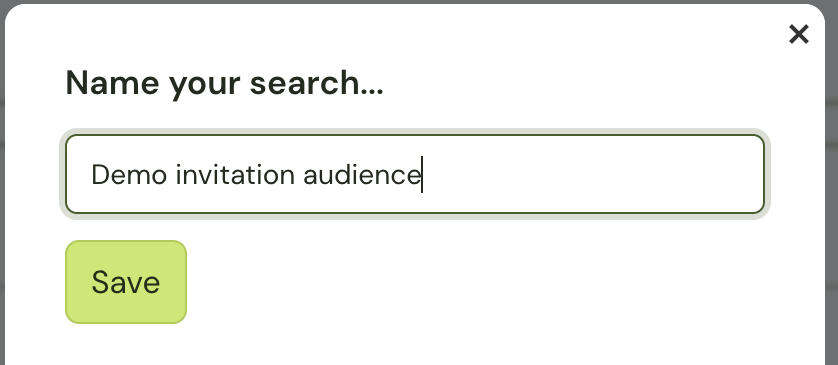
Name your search dialog with Demo invitation audience entered and the Save button visible.
Give the saved search a name that says which audience it finds. The filter rules are reused when you load it again.

Example of inviting interested prospects to a demo

The marketing team includes contacts tagged Demo requested with an inspection-system product interest and excludes the Demo registered tag for this event. One relevant buyer appears. Another has already booked and stays out. The team saves the search as Inspection system demo · invitees and checks the results again on send day.

Use the email campaign checklist to review the final recipients and test the message.

Keep going

Related guides

  • How to check a contact’s email subscription status↗

    Find a contact’s opt-in status, see how it affects email eligibility and check that unsubscribed contacts stay out of campaigns.

  • When to use tags and custom fields in your CRM↗

    Choose between a tag, a custom field and a note, then check that the CRM stores the right value for finding and routing contacts.

← Browse all guide topics

BEYOND DIGITAL

Beyond Digital

AI consultancy for marketing functions

Access Our Toolkit
Newsletter Form
Sign Up To Get The Latest Tools & Insights

By subscribing, you request the Studiowide newsletter. Read our privacy policy. This site is protected by reCAPTCHA and the Google Privacy Policy and Terms of Service apply.

Studiowide logo

Our marketing is built on smart strategies designed to help you hit your goals. Every step is purposeful and focused on delivering results that grow your business, connect with your audience, and build demand.

Quick Links
  • About
  • What We Do
  • Our Work
  • News & Insights
  • Toolkit
  • Guides
Get in Touch

Get in Touch Via WhatsApp

Studiowide Ltd, 16 Jordan Street, Liverpool. L1 0BP. Tel: 0151 708 5678 | hello@studiowide.co.uk

© 2026 Studiowide | Environmental Policy | Equal Opportunities Policy | T&C's | Privacy Policy
Manage Consent

We use cookies to keep our website running smoothly and, with your permission, understand how you use it. This helps us improve our content and make your visits more useful. You can choose which cookies to allow and change your preferences at any time.

Functional Always active
The technical storage or access is strictly necessary for the legitimate purpose of enabling the use of a specific service explicitly requested by the subscriber or user, or for the sole purpose of carrying out the transmission of a communication over an electronic communications network.
Preferences
The technical storage or access is necessary for the legitimate purpose of storing preferences that are not requested by the subscriber or user.
Statistics
The technical storage or access that is used exclusively for statistical purposes. The technical storage or access that is used exclusively for anonymous statistical purposes. Without a subpoena, voluntary compliance on the part of your Internet Service Provider, or additional records from a third party, information stored or retrieved for this purpose alone cannot usually be used to identify you.
Marketing
The technical storage or access is required to create user profiles to send advertising, or to track the user on a website or across several websites for similar marketing purposes.
  • Manage options
  • Manage services
  • Manage {vendor_count} vendors
  • Read more about these purposes
View preferences
  • {title}
  • {title}
  • {title}