

To work through your website enquiries in the Studiowide Marketing Automation & CRM system, open Submissions, read the original message and open the linked contact. Check Tasks for the follow-up. After you act, record the outcome in Notes and give any remaining work its own task.
1. Choose which enquiry to work on
If the expected entry is missing, follow why a website enquiry may not appear in the CRM to check the search, dates, archive and linked contact.
- Open Submissions. Use the contact, form or received-date filters to find the enquiry. Choose Apply filters, then View submission on the matching row.
- Read the message and submitted details, then choose Open contact. Check the Contact Owner and open Tasks to see who’s assigned to the follow-up and when it’s due.
- Check Notes and your team’s usual reply channel for an existing response. If a teammate has already picked up the enquiry, use their update to agree who should take the next action.
Start with overdue follow-ups and enquiries where the promised response time is close. A recent form submission can belong to an existing contact, so match the task and notes to the enquiry you’re handling.
2. Record the result and complete the task
After your reply or call, open Notes on the contact and use Add Note. Record what you did, what the customer needs next and any deadline you gave them. For example, Called about the replacement part. Buyer will send the serial number. Agreed to confirm availability by Thursday at 15:00.
When the original action is finished, select Mark complete on that task. If the buyer is still waiting for the original reply, keep the task open so it stays visible.
3. Give the next action a deadline
If the follow-up is assigned to the wrong person, use the sales assignment troubleshooting guide to check the contact owner and task assignee separately before making a correction.
If there is more work to do, use Add Task on the same contact. Enter a specific action, choose who it’s Assigned To and set the Due Date. Select Create Task, then check that the open task shows the right person and deadline.
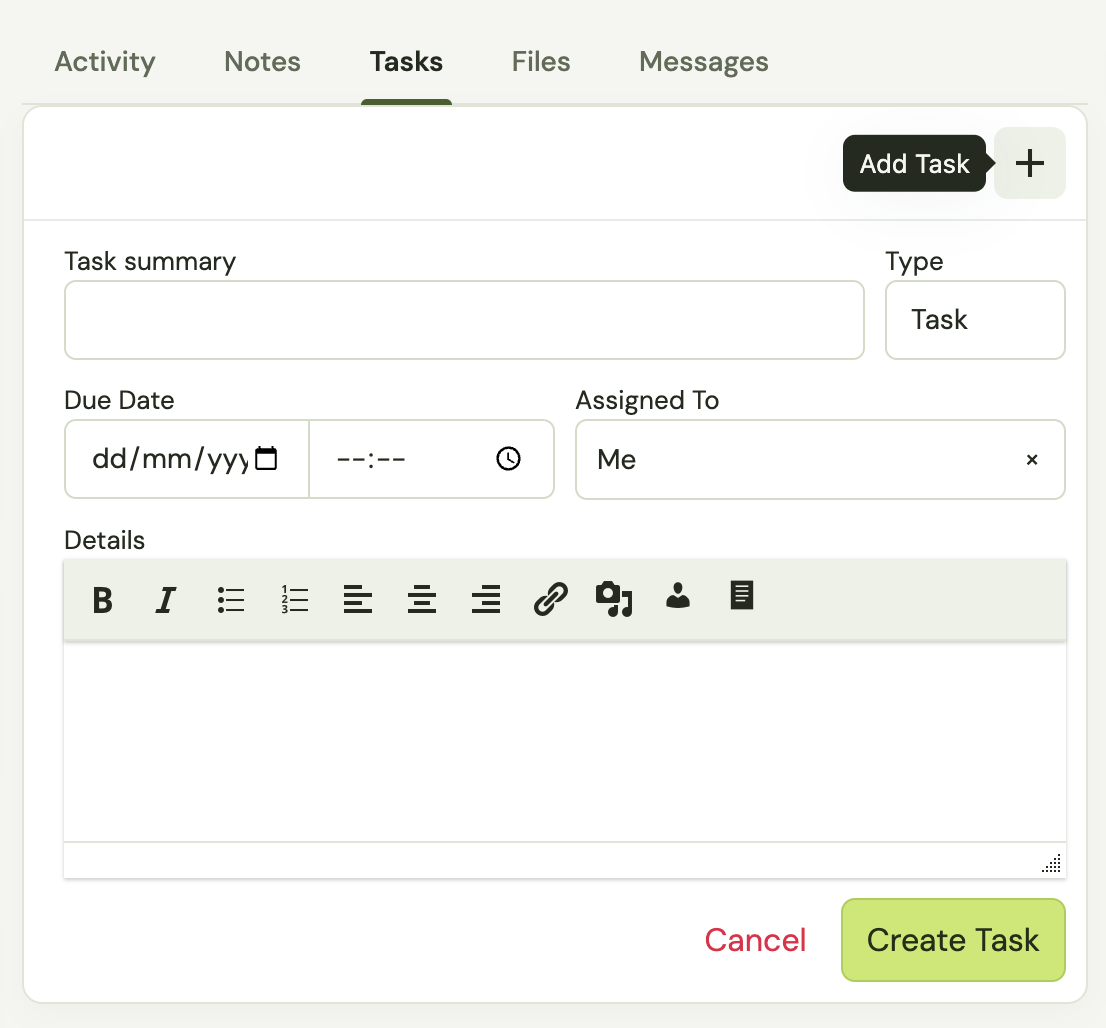
To cover someone’s absence, assign the task to the person who will handle it and let them know about any promise already made to the buyer. Check the contact owner separately if responsibility for the whole account is changing.
Example of keeping a parts quote moving
The parts specialist replies to a quote enquiry and learns they need a serial number before they can price it. They record the call and complete the original reply task. They add a new task called Check for serial number and confirm availability, assigned to the colleague covering tomorrow, with a 15:00 deadline. That colleague can see exactly what the buyer expects and when to act.
See how to deal with an overdue website enquiry or how to give each new enquiry an owner and first task automatically.