

To review a one-off email campaign in the Studiowide Marketing Automation & CRM system, open Reports and choose Broadcasts. Open the send you want to review. Check how many emails were sent, which links people clicked and how many contacts unsubscribed. Then compare those figures with the result you wanted, such as completed demo bookings.
1. Find the right broadcast report
- Open Reports and select Broadcasts. If needed, adjust the date range or choose the campaign you used to group the send.
- Select the email name from the broadcast results. If you’re already in the broadcast list, open the send’s Report action where available.
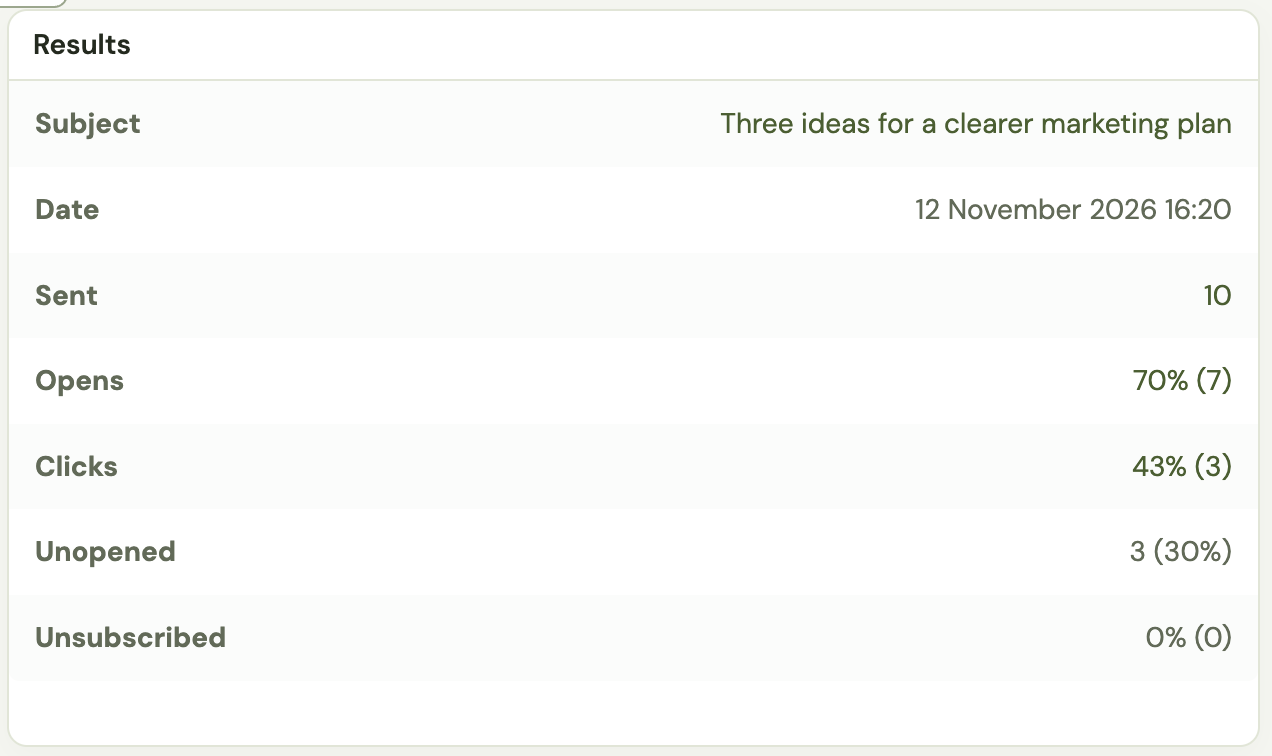
- In Results, check the subject, send date and number sent. This helps you distinguish the original invitation from a later reminder with similar copy.

2. Read the figures in context
- Sent. Use the reported send count to check the scale of the campaign. This metric describes sends recorded by the system. Inbox placement requires separate evidence.
- Opens. Use recorded opens as a rough signal. For a demo invitation, clicks on the booking link and completed registrations tell you more about the intended action.
- Clicks. In Broadcast Link Clicked, find the URL behind your main button. Uniques counts distinct contacts who clicked that link. Clicks includes repeat clicks.
- Unsubscribed. Check the number who opted out. If this rises compared with a similar send, review how well the message and frequency fit the audience.
The Clicks percentage in the email broadcast’s Results is based on recorded opens. The demo shows 43% because three of the seven contacts who opened also clicked. When comparing the figure with another report, check whether it uses opens or sends as the denominator.
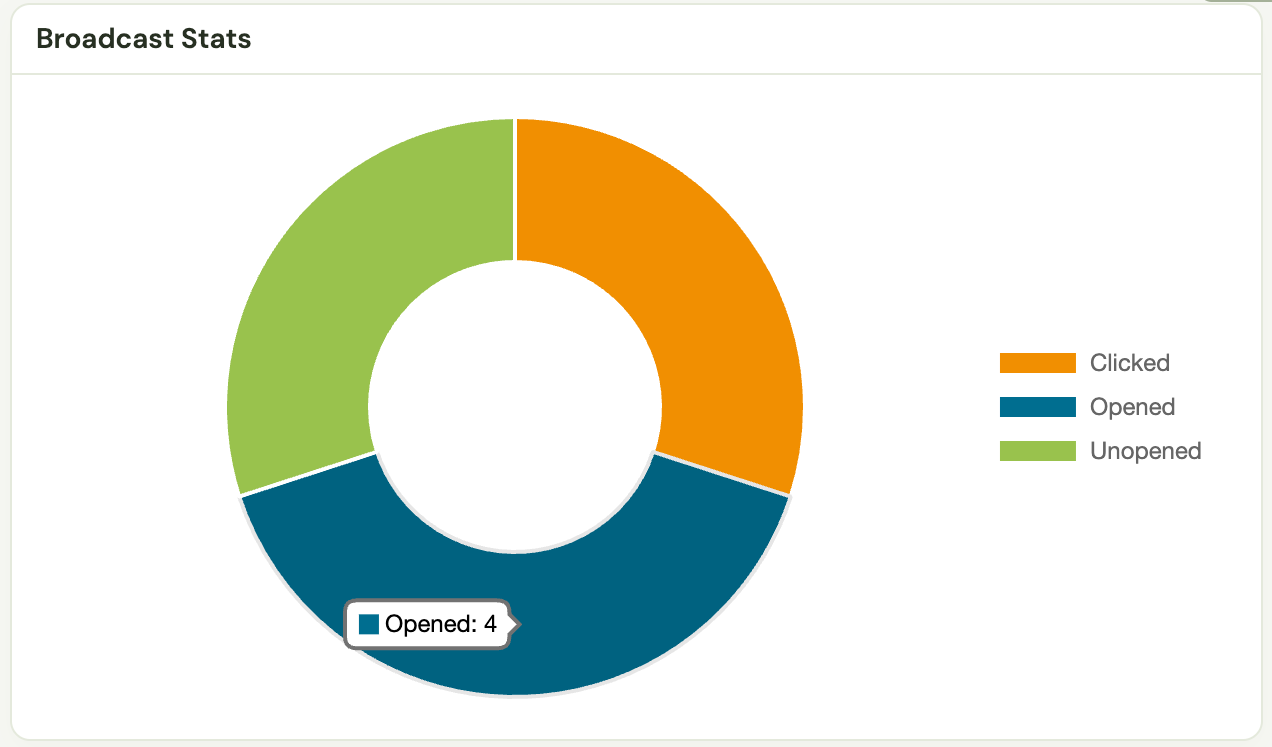
If you’re investigating delivery problems, check the Bounces card in Reports → Email. Check the date and reporting scope before attributing any bounces to this broadcast.
3. Drill down to the contacts
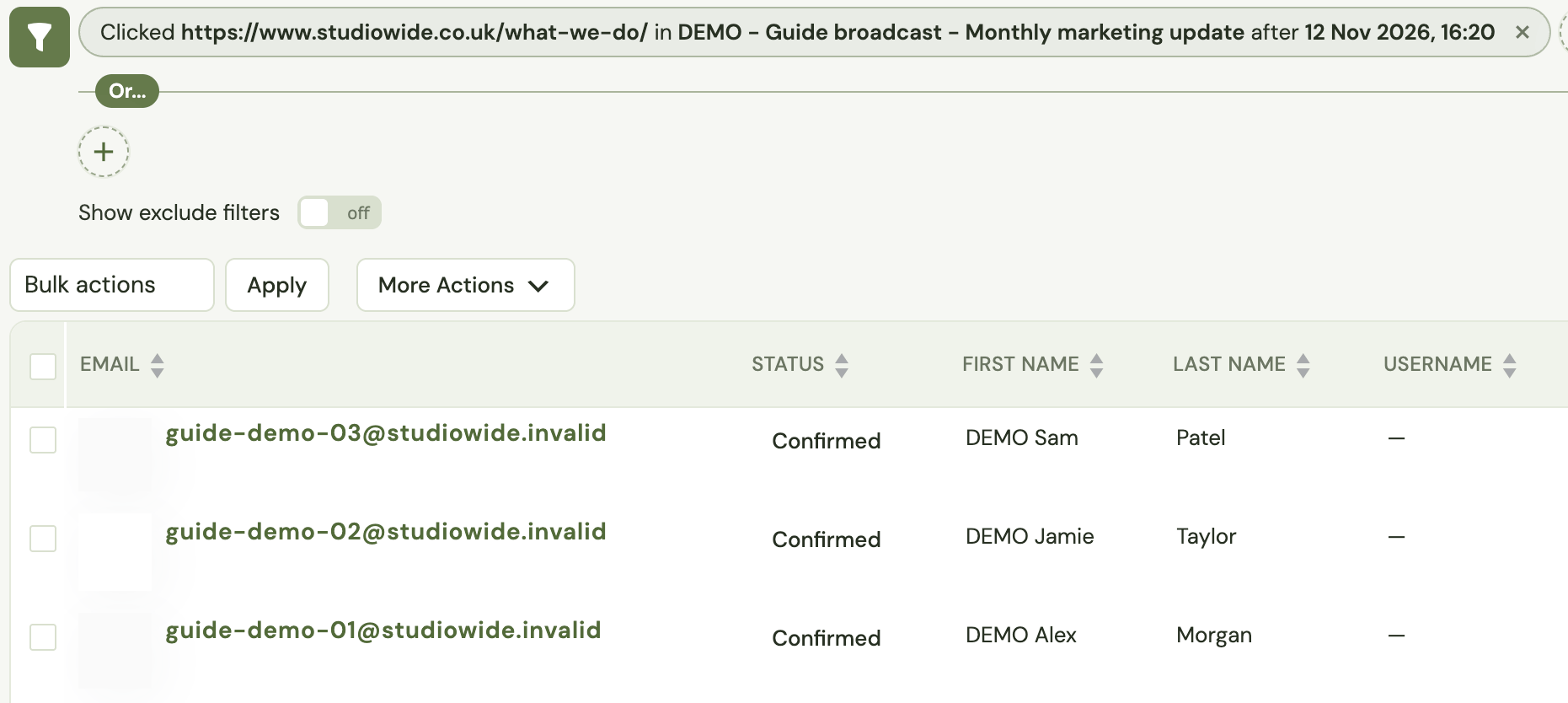
In Results, select the count beside Opens or Clicks to see contacts who opened the broadcast or clicked any link in it. To see who clicked a specific link, find its row in Broadcast Link Clicked and select the number under Uniques.

The Contacts screen opens with the relevant activity filter already applied. Check the filter at the top, then select a contact’s email address to open their record.
Example of reviewing a product demo invitation
The report shows 480 sends. The booking link shows 24 unique contacts and 31 total clicks. The booking system shows seven completed registrations attributed to the email, and the broadcast report shows three unsubscribes. Check how the booking source was recorded before relying on the attribution.
If the link draws interest but few people book, open the booking page on a phone and try the form. If few people click the main link, review the offer, the audience and the visibility of the button. Use the campaign test-send checklist to check the changes before your next send.