

To review where leads stop progressing in the Studiowide Marketing Automation & CRM system, open the flow’s report, check the reporting period and compare its step activity with the intended journey. Then use a demo-contact simulation to inspect the timing and conditions at the point you want to investigate.
Worked example: enquiries waiting before the next useful step
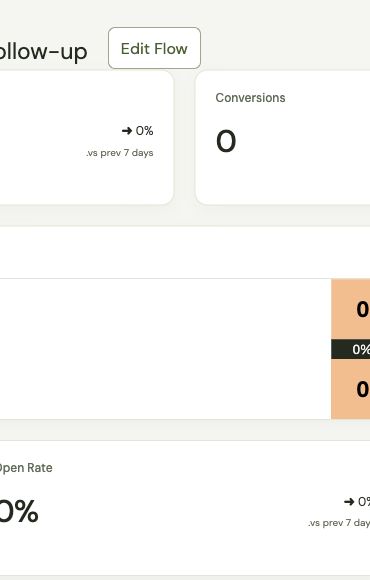
Your product-enquiry flow acknowledges Alex, waits two days and offers a demonstration. Some contacts may be waiting normally, some may have moved to sales and some may have reached an email that needs attention. Treat these as different outcomes. The screenshots use an inactive demo flow with zero live contacts, so they illustrate the controls rather than campaign performance.
1. Open the report for the correct flow
- Open Flows and identify the sequence you want to review. Use its Report link where available, or open the flow editor’s three-dot menu and choose Reports.
- Check the flow name and reporting date range before interpreting the numbers. Compare the same period when reviewing changes.
- Read Contacts Added, Active Contacts, Conversions and Conversion Rate. These answer different questions: entry, current participation and the conversion events recorded by the flow.

A conversion needs a meaningful conversion event in the flow. Reaching an email action, opening a message or finishing a simulation is not automatically proof of a sale. Use the email campaign reporting guide for message-level opens and clicks.
2. Read step activity in the context of the journey
- Find the flow activity diagram in the report. Locate the entry trigger, email actions, waits and exits.
- Compare activity before and after the step you want to investigate. A contact waiting at a Delay Timer may be exactly where it should be.
- Check whether an expected exit explains the change. A lead that has moved to sales should stop receiving general nurture; a quote that has progressed should stop receiving a generic quote reminder.
- Use the available contact-count links to investigate the relevant group rather than assuming that fewer contacts after a step means the action failed. Empty demo groups do not provide a live contact history to inspect.
3. Reproduce the route with a demo contact
- Return to the flow editor and open the simulator using the play-shaped control.
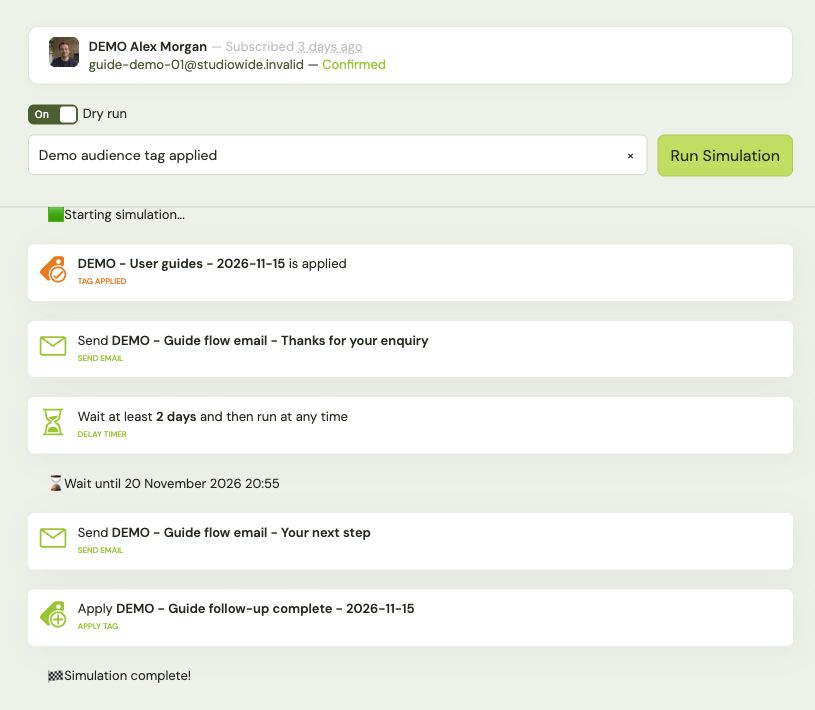
- Select a suitable demo contact and confirm Dry run On. Choose the starting step immediately before the point you are checking.
- Select Run Simulation. Read the timeline for the scheduled wait, conditional checks, skipped actions and the stopping point.
- Repeat with the alternative condition: for example, a contact with a sales-handover tag or a quote status that has changed. Record the expected result before deciding whether the trace is correct.
4. Turn the finding into a specific improvement
When a lead stops before an expected message, use the automated-email troubleshooting guide to distinguish missing entry, a normal wait, a stop condition and an email-readiness warning.
If contacts wait longer than intended, inspect the timer’s permitted times and days. If they stop at an email action, inspect the visible draft warning and the contact’s subscription eligibility. If the flow works but few leads take the next step, review whether the email gives a clear, relevant reason to respond. Make one focused change and compare a suitable later period, allowing for changes in enquiry volume.
For a sales process, review owner and task completion alongside automation activity. The overdue-enquiry guide helps identify follow-up that needs a person’s attention. The sales handover guide connects the acknowledgement, routing, alert and dated task.
Check the result before restarting anything
Write down the flow, date range, affected step, example contact and observed reason for the wait or exit. Check existing progress before adding a contact again: restarting can repeat messages or create duplicate tasks. A healthy flow can include deliberate stops, unsubscribes and handovers; the useful question is whether each lead reached the right next step.