

In the Studiowide Marketing Automation & CRM system, use Create Task after the sales assignment to give each website enquiry a deadline and a named owner. An unfinished task becomes overdue when its due time passes. Open the contact’s Tasks tab to see the due time, who owns the task and what needs doing.
1. Agree when sales will reply
Decide when the buyer should hear from a person and who covers the enquiry if the assigned salesperson is away. Give the first task an action the owner can complete, such as Reply to the replacement-parts enquiry. The first reply can confirm availability, ask for a missing detail or tell the buyer when to expect a quote.
Agree which days the team covers before choosing a deadline. If the automatic acknowledgement gives a response window, use wording that matches the hours your team can cover.
2. Set the due date in the website enquiry flow
- Open Flows and find the intake flow already connected to your website form. Put Create Task after Assign Owner so the task goes to the person responsible for the enquiry. Use this step near the start of the handover if the response clock starts when the enquiry arrives.
- Enter a short task summary and enough detail for sales to act. For example, ask them to read the original enquiry in Notes, confirm which part the buyer needs and reply from the agreed sales mailbox.
- Under When should the task be completed by?, enter the amount, choose Days, Weeks or Months, and set the time. For 1 Day at 17:00, enter 1, select Days and set 17:00. The CRM calculates the due date from the task step’s scheduled time in your workspace timezone.
- For a reply by email, choose Email under What type of task is it?. Under Assign the task to…, choose The contact owner. Keep the Admin Notification after assignment if your team needs an alert with a link to the contact as soon as the enquiry is handed over.
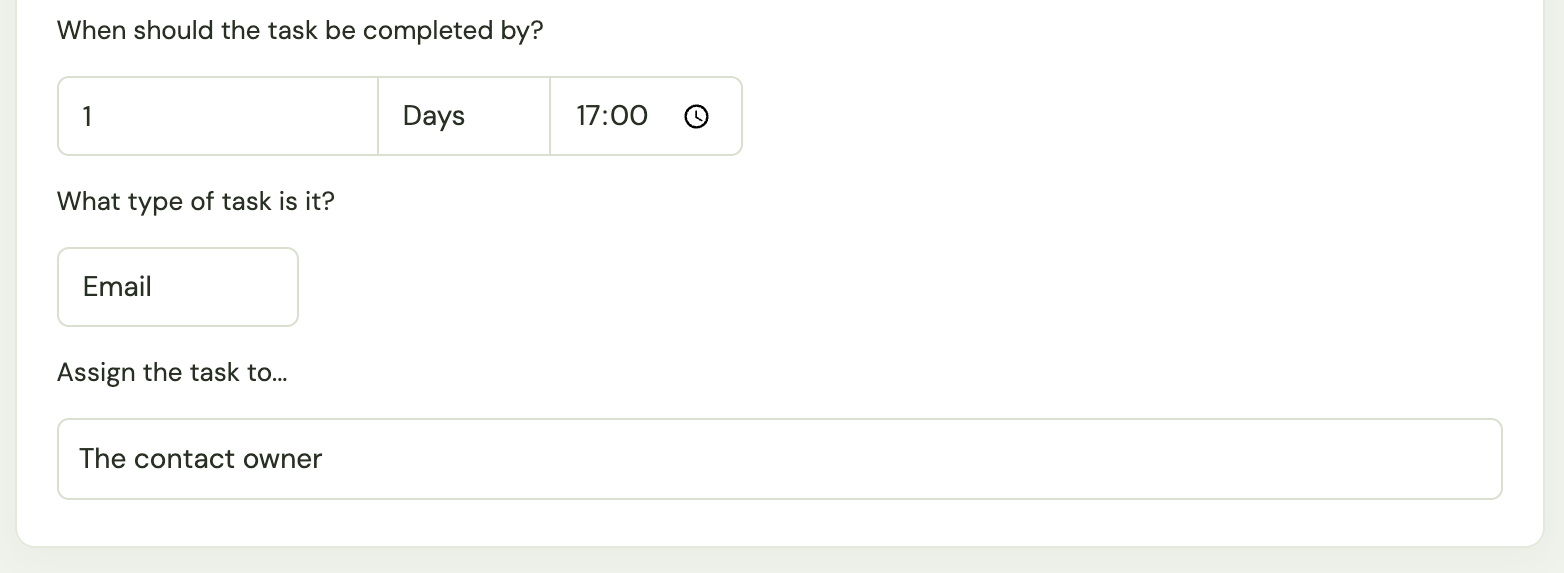
Check the weekend. Days are calendar days. A Friday task step with 1 Day at 17:00 creates a Saturday deadline at 17:00. If your team promises a reply within one working day, agree how to handle weekends and holidays. For a small team, the person covering the inbox can review Friday’s tasks and set the actual Monday deadline where appropriate. Test any working-day automation before using it for customer enquiries.
For the rest of the flow, follow the sales handover guide, which covers the owner, the internal notification and the personal reply.
3. Deal with an overdue enquiry
If the task appears to belong to the wrong person rather than simply being late, follow the sales assignment troubleshooting checks before changing its assignee or the contact owner.
- Find the enquiry in Submissions, open its contact and select Tasks. Select the overdue count when it appears to narrow the list to unfinished tasks whose deadlines have passed.
- Open the original message and check Notes and the agreed sales mailbox for any reply. If someone has already followed up, record the outcome and choose Mark complete.
- If the buyer is still waiting, agree who will reply and when. Open the task’s three-dot menu and select Edit. Update Due Date or use Assigned To when responsibility changes. Record why the deadline was missed and notify the person taking over so they know the buyer is waiting.
- After the reply or call, record the outcome and mark the task complete. If the buyer is waiting for a quote or another action, create a separate task with its own owner and deadline.
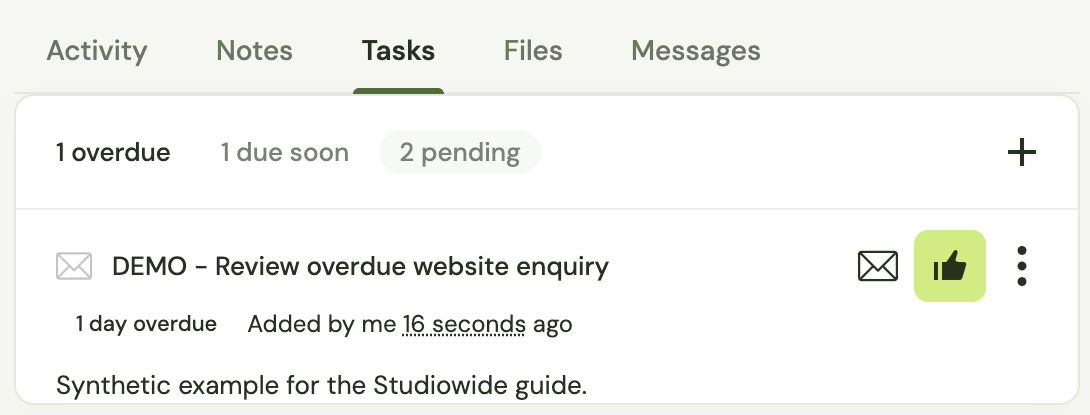
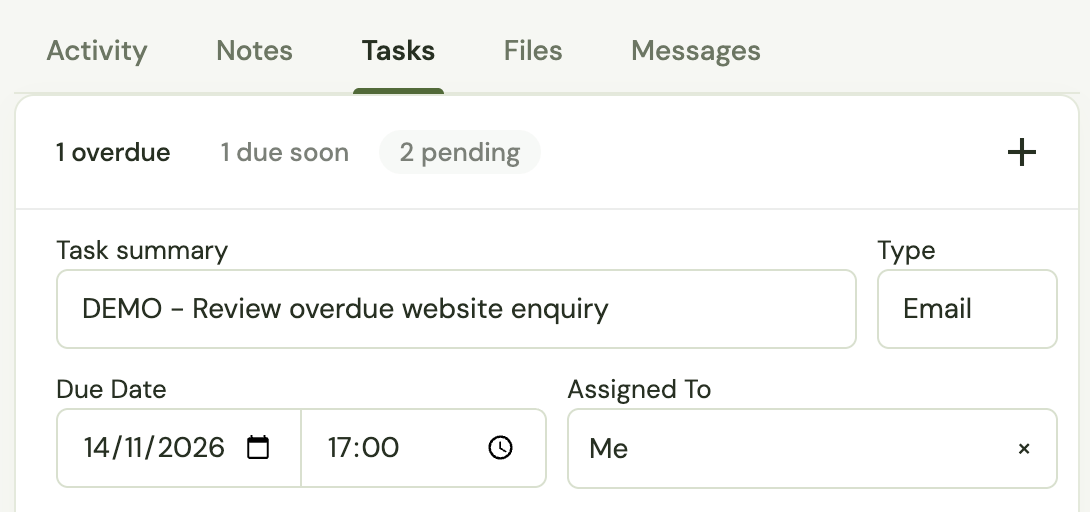
The task assignee and the contact owner can serve different purposes. If a colleague is covering one reply, check the task is assigned to them. Update the contact owner as well if the whole account is moving to them.
A replacement-parts quote needs a reply by Friday
A buyer submits a quote request at 10:30 on Thursday and receives an acknowledgement saying the team will reply by Friday afternoon. The flow assigns the enquiry to the parts specialist, alerts them and creates an Email task called Reply to the replacement-parts enquiry. With 1 Day at 17:00, the task is due Friday at 17:00 UK time.
On Monday, the sales lead finds the task overdue and checks the mailbox. The specialist was away and the buyer is still waiting. The lead assigns the task to the backup salesperson, sets a Monday midday deadline and lets them know. The backup reads the original request, confirms the part and sends the buyer an update. They complete the reply task and set a new deadline for issuing the quote.
For a daily review, give someone responsibility for checking unfinished follow-up and covering absences. Start with enquiries whose promised response time has passed. If the same Friday deadline repeatedly creates weekend overdue tasks, review the deadline rule and what the acknowledgement promises.
4. Check the deadline before you rely on it
Use a connected form and mailbox you control in your test workspace. Check the task summary, assignee, exact due date and time on the test contact. Try a normal weekday and a Friday or after-hours scenario. Verify that someone with the right workspace permissions can edit the due date, reassign the task and mark it complete.
The task settings, overdue display and deadline calculation were checked in the Studiowide Marketing Automation & CRM system on 15 November 2026. Thursday and Friday deadlines were calculated using the installed date rules and the Europe/London workspace timezone. Use the checks above to confirm end-to-end behaviour in your own setup.