

To sign in to your Studiowide Marketing Automation & CRM system, open the workspace link supplied for your account. Enter your email address or username and your password, then select Sign in. If you’ve forgotten your password, select Forgot password? on the same screen.
How to sign in to your workspace
- Open the workspace link you were given when you got access. If you work across more than one workspace, choose the link for the team you want to work with.
- In Email or username, enter the email address or username associated with your account. Enter your password in Password.
- Select Sign in. Once the workspace opens, bookmark the link you were given so it’s easy to find next time. Give the bookmark your team or company name if you use several workspaces.
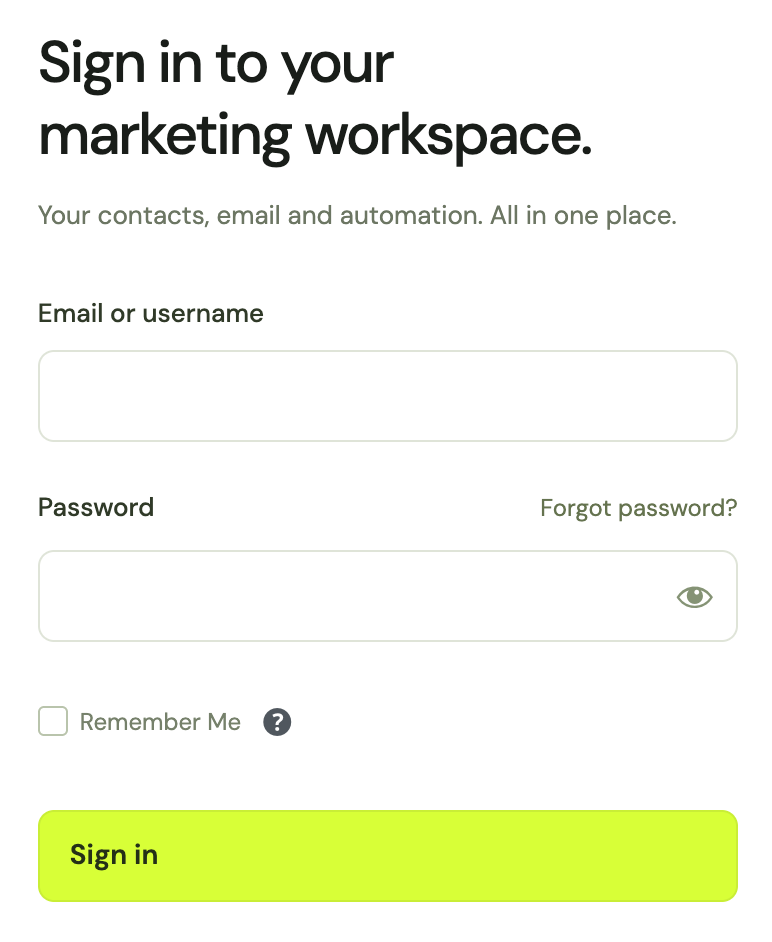
Use Remember Me on your own device if you want to stay signed in for longer. On a shared device, leave it unticked and sign out when you’re finished.
How to reset your password
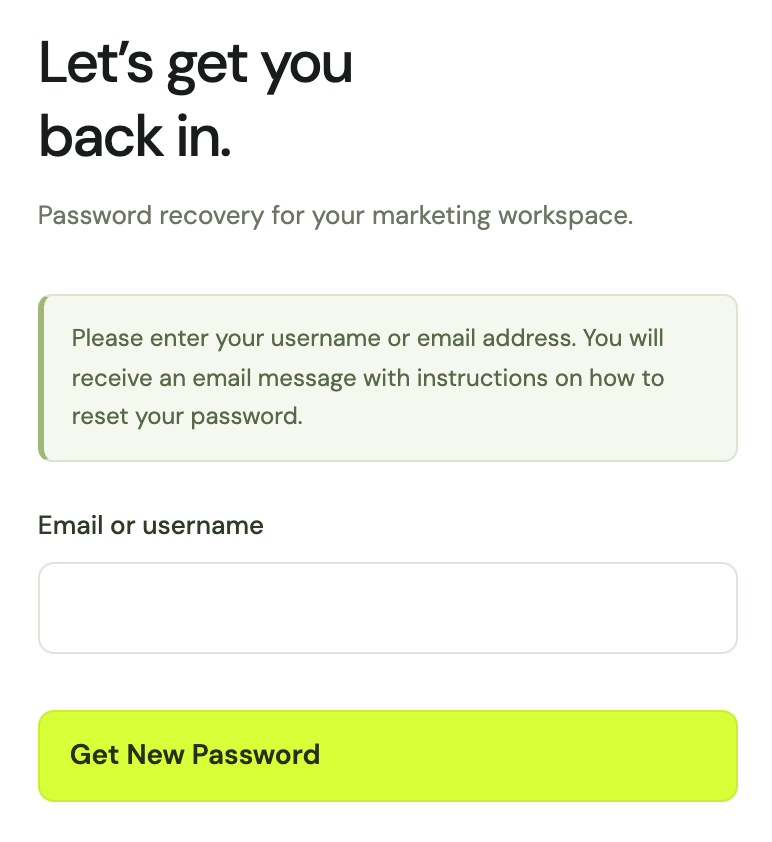
- Open your own workspace link and select Forgot password? on the sign-in screen.
- Enter your account email address or username and select Get New Password.
- Open the password reset email and follow its link to choose a new password.
- Return to your workspace link. Enter your email address or username and your new password, then select Sign in. Update the saved password for that workspace if your browser or password manager still fills in the old one.
What to check if you can’t sign in
- Check the workspace and account. Reopen the link you were given and check which email address or username you used for that account. If your browser filled in the details, check that it picked the right account.
- Check for the reset email. Look in the inbox for your account email address and check the junk or spam folder. If you requested more than one reset, use the most recent email. If the link has expired, request a new one from your workspace sign-in screen.
- Still having trouble? Use Contact support on the sign-in screen for help with account access. Have your workspace link and account email address ready. Keep your password and reset link private.
Example of finding the right workspace
A new salesperson opens the workspace link from their joining email. Their browser fills in a different work account, so they replace it with the email address registered for their workspace. Once signed in, they bookmark the link under their company name so they can get back to their enquiries quickly.