

When an enquiry appears to have gone to the wrong salesperson, compare the original request with the stored routing values, the branch conditions, the current contact owner and the follow-up task’s assignee. In the Studiowide Marketing Automation & CRM system, contact ownership and task assignment are separate checks; the current owner alone does not prove which route originally ran.
Worked example: new equipment enquiries from the North
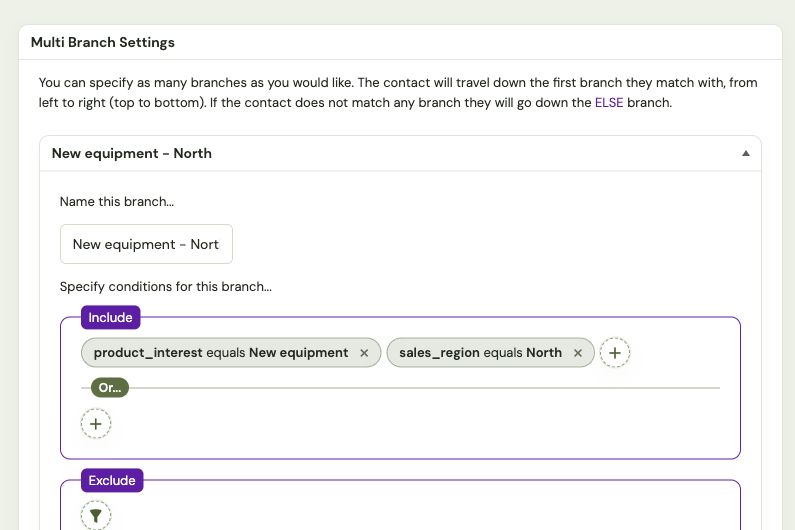
The inactive demo routing flow has a branch called New equipment – North. It requires product_interest to equal New equipment and sales_region to equal North, then assigns Carl and creates a task for the contact owner. Use this as an illustrative rule. If either value is missing, the contact will not match that branch just because the enquiry message mentions the product or region.
1. Confirm the original enquiry and the record you are checking
- Open Submissions, search using the enquiry email address and open the matching entry. Check the form, date and original message.
- Use Open contact to inspect the linked record. Check for another email address or duplicate record before deciding that the ownership is wrong.
- Compare the submitted details with the product and region values actually recorded on the contact. Use the fields available in your workspace; where these values are stored under More, inspect the relevant entries there. Do not treat a note as if it were a populated routing field.
In our demo checks, Alex’s enquiry is present but the contact does not have the example product and region fields. That is a useful data check, not evidence that this inactive routing example processed Alex. The tags and custom-fields guide explains the distinction between a tag, a field and a note.
2. Compare the branch conditions and their order
- Open the relevant flow in Flows. Inspect the routing step and expand the branch you expected the enquiry to match.
- Compare the exact field keys, comparison and values. The demo branch requires both product_interest equals New equipment and sales_region equals North.
- Check the grouping and branch order. Multi Branch uses the first matching branch in the displayed order. A broader earlier branch can take a contact before a later, more specific branch.
- Check the Else route for unmatched contacts. Do not assume that it assigns an owner or creates a task unless those actions are actually on that route.
3. Check the owner action and the current owner
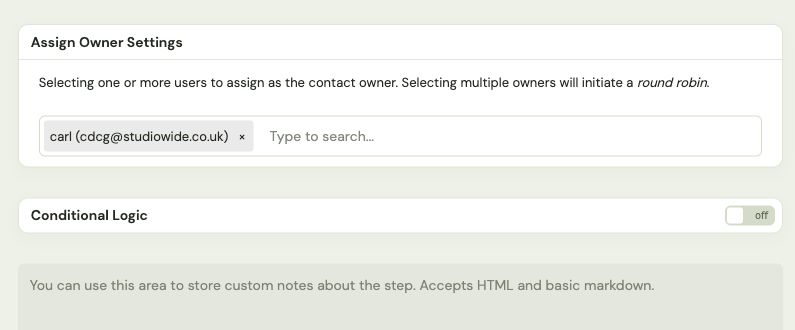
Open Assign Owner on the intended route and check the selected user. Selecting more than one user initiates round robin, so a different selected salesperson may be expected rather than an error. Compare that configuration with the current Contact Owner in the contact’s General details, or the Owner column in Contacts. In this signed-in demo account, Me means Carl.
Read the contact’s Activity and Notes for evidence of the original route or a later reassignment where those records are available. If the history does not establish what happened, record that limit rather than presenting the current owner as proof.
4. Inspect the task assignee and deadline separately
- On the contact, open Tasks and locate the relevant follow-up task.
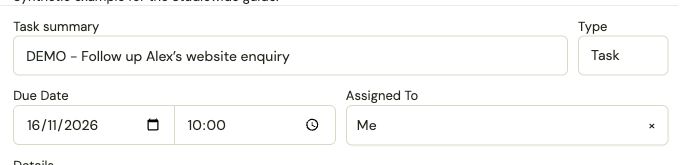
- Open its three-dot menu and choose Edit. Check Assigned To, Due Date and the task summary.
- Compare that task with the Create Task action in the flow. The example action assigns to The contact owner when it runs. Do not assume that changing contact ownership later has also updated an existing task.
- If a correction is needed, agree the responsible salesperson, check the contact owner and task assignee deliberately, and record a clear next action and deadline before saving changes.
Check the result and make the route more reliable
The result should be one agreed salesperson, one clear next task and no duplicate acknowledgement or reminder. Notify the correct person once, and check any overdue action using the deadlines guide. For a growing team, use specific product or region rules plus an explicit fallback owner and dated review task so incomplete enquiries remain visible.
Use the routing walkthrough to review the intended process and the sales handover guide to connect source tagging, acknowledgement, ownership, internal notification and follow-up. Correcting a route for future enquiries is separate from checking contacts and tasks already assigned.