

If a website enquiry seems to be missing from your Studiowide Marketing Automation & CRM system, search Submissions by the email address used on the form, widen the date range and check the archive and read-status filters. Then look for the contact and its Notes. A missing result in one filtered view does not establish that the enquiry was never captured.
Worked example: Alex’s enquiry is outside the selected dates
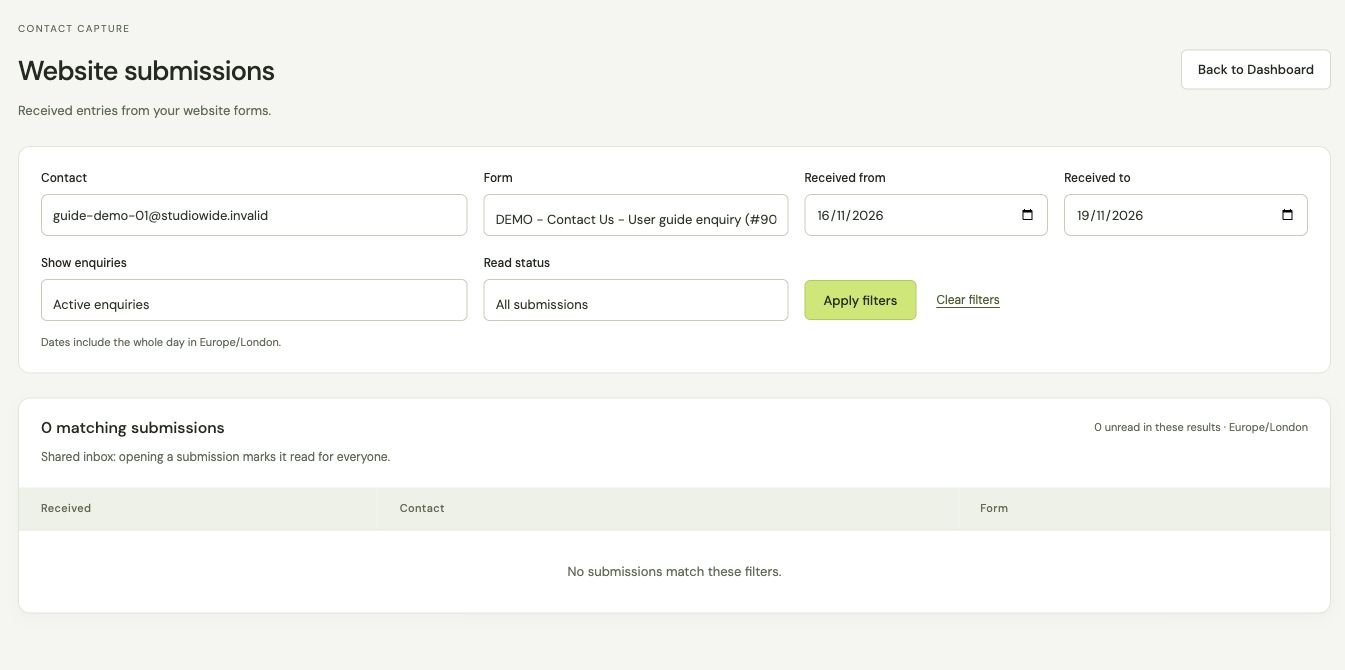
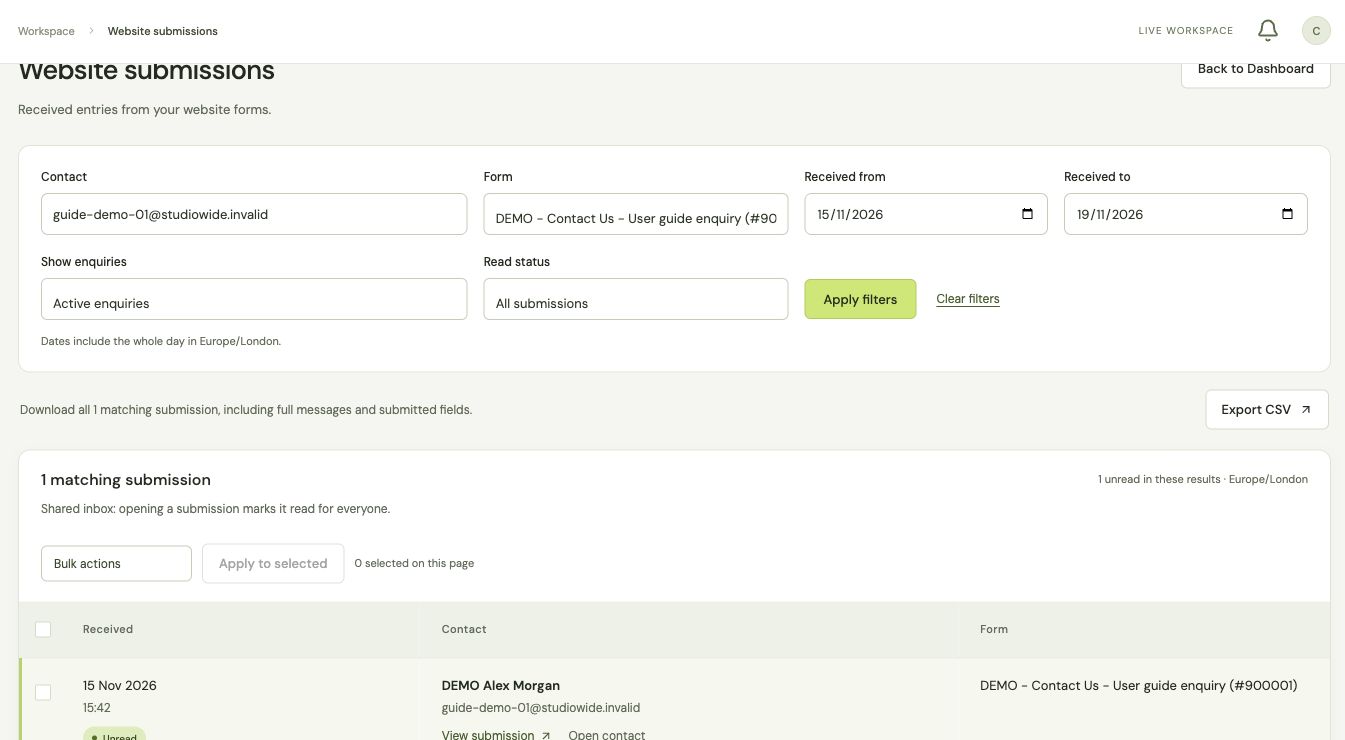
DEMO Alex Morgan submitted an enquiry on 15 November. A search starting on 16 November returns no matching submissions. Moving the start date back to 15 November reveals the entry. The screenshots use a synthetic enquiry; no new form submission or customer message is needed to make these checks.
1. Check the enquiry search before creating another record
- Open Submissions. In Contact, search using the email address entered on the website. Check for a spelling mistake or a different address used by the same person.
- Check Form. Select the relevant form, or All forms if you are not sure which page the person used.
- Widen Received from and Received to around the original enquiry date. Dates include the whole day in the timezone displayed below the filters.
- Set Show enquiries to All enquiries when checking for an archived entry. Set Read status to All submissions so an enquiry read by a colleague is included.
- Choose Apply filters and check the matching count. Use Clear filters to start again if a combination of filters is still too restrictive.
2. Open the original submission and its contact
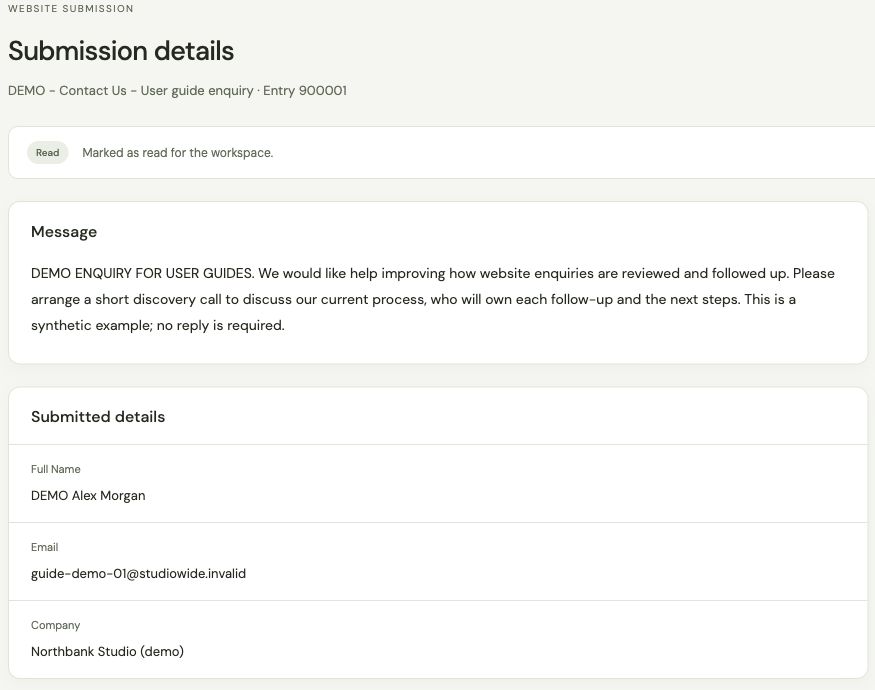
- Choose View submission for the matching entry. Read the message and submitted details, then check the received date and form.
- Choose Open contact to continue with the linked record. This avoids creating a second contact for the same enquiry.
- Remember that opening a submission marks it read for the shared workspace. An unread-only list can therefore change after someone else opens an enquiry.
3. Check Contacts and Notes as well as Activity
If the enquiry still does not appear, open Contacts and search for the email address outside the current enquiry filters. Open the record and select Notes. Look for a note containing the website enquiry and its date. You can also inspect Activity, but a page visit only shows a visit, and an empty filtered activity view is not proof that no enquiry exists. In this demo, the enquiry is present in Submissions and Notes while the form-activity filter shows no activity.
Check that you are in the correct customer workspace. Submissions lists entries for contacts you have permission to view, so a colleague seeing an entry that you cannot see may indicate a difference in access rather than a missing enquiry.
Use the contact and duplicate-checking guide before adding anything new. The enquiry and follow-up tasks guide explains what to do once you find the entry.
Check the result and keep the enquiry moving
A useful result is one original submission, the correct linked contact and a clear next action. Check the owner and the next task before replying. If the entry remains absent, record the email address, approximate time, page or form used and the views you checked. Say what you could not find; do not describe it as deleted without evidence. Avoid asking the customer to submit repeatedly while an existing entry may still be present.
Finding an enquiry does not confirm that an acknowledgement was delivered. Use the automatic acknowledgement guide for that part of the journey, and the sales handover guide to connect the acknowledgement, owner, alert and dated follow-up task.