
Studiowide Onovo
  • Home
  • About
  • What We Do
  • Our Work
  • News & Insights
  • Toolkit
  • Guides
  • Contact Us
Search

Explore our work, services, toolkit and insights.

Home/Guides/Marketing Automation

Studiowide Marketing Automation & CRM

Troubleshooting

Why hasn’t an automated email arrived?

Check flow entry, waiting time, conditions, email readiness and the contact’s recorded activity before attempting an automated email again.

Reviewed by Studiowide · Last tested 19 November 2026

What you’ll achieve

Check flow entry, waiting time, conditions, email readiness and the contact’s recorded activity before attempting an automated email again.

On this page

  • Worked example: an expected follow-up has no recorded flow activity
  • 1. Confirm the contact and inspect its flow history
  • 2. Check the flow, trigger and email readiness
  • 3. Check the wait and any stop conditions
  • Check existing activity before trying again

When an automated email has not arrived, check whether the contact entered the intended flow, whether the email action is due, whether a condition stopped it and whether the selected email is ready to send. In the Studiowide Marketing Automation & CRM system, start with the contact’s Activity and the relevant flow before attempting another send.

Worked example: an expected follow-up has no recorded flow activity

Alex is expected to receive an enquiry follow-up, but the demo contact has no recorded flow activity. The inactive demo flow also contains a draft email and a two-day delay. These are separate checks: a contact may never have entered, may be waiting, or may have reached an action that cannot run. The screenshots illustrate these states; they do not show a failed live delivery.

1. Confirm the contact and inspect its flow history

  1. Open Contacts, search for the intended email address and open the correct record.
  2. Check the email address and subscription status. A contact existing in the CRM does not by itself establish that it can receive this marketing email.
  3. Open Activity. In Filter by, choose All flow activity. Look for the relevant flow and the steps or statuses recorded for that contact.
  4. If no activity is shown, check that you have the right contact, filter and flow. Do not treat the absence of a history entry as a reason to add the person repeatedly.
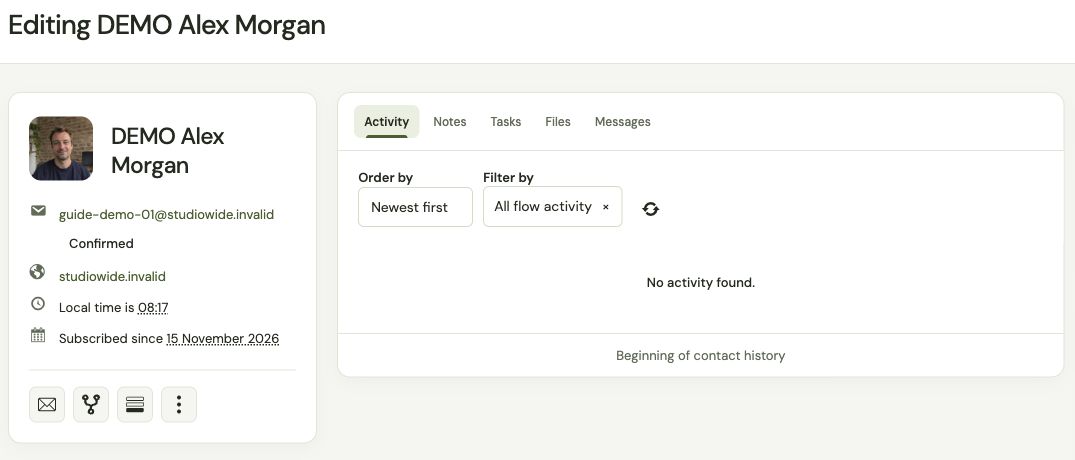
DEMO Alex Morgan’s Activity tab filtered to All flow activity with no activity found
Check for recorded participation before investigating a later email action. This demo record has no flow activity in this view.

Use the subscription-status guide to interpret the visible status. Do not change a status simply to force a message through.

2. Check the flow, trigger and email readiness

  1. Open Flows and find the intended sequence. Check whether it is listed under Active or Inactive. The examples shown here remain inactive.
  2. Inspect the entry trigger and the event it expects. For example, a Tag Applied trigger needs the relevant event; the mere presence of a tag now does not prove when the contact entered.
  3. Open the expected Send Email action. Confirm that the correct email is selected and read any warning. In the demo, the editor explicitly says the selected email is in draft mode and will stop the automation.
  4. Review the email before making it available for use. Use the existing preparation and test-send procedure rather than assuming that selecting an email means it is ready.
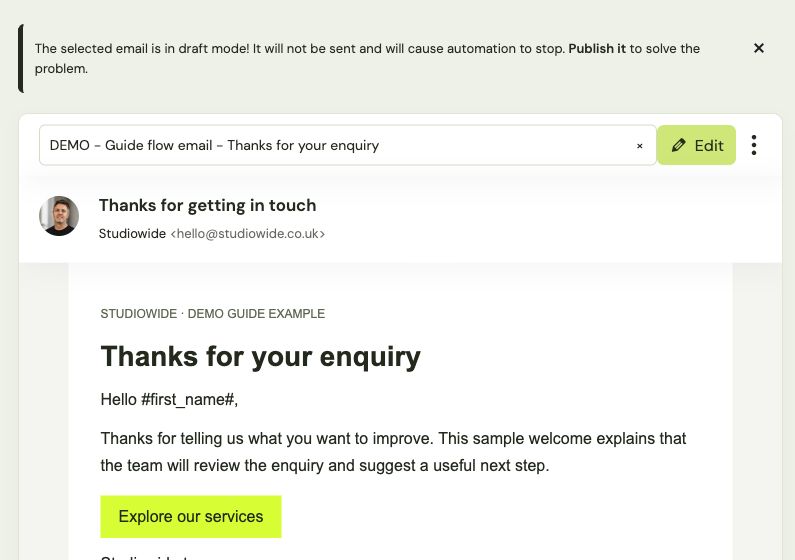
Send Email action showing the warning that a draft email will not be sent
This is a visible readiness warning in an inactive demo flow. Read it before considering a retry.

3. Check the wait and any stop conditions

Open any Delay Timer before the email. Check the duration, permitted days, execution time and contact-timezone option. Delay Preview is a timing aid calculated in the editor; it is not proof that this contact is queued for the displayed time. Compare the configured wait with the contact’s actual recorded progress. A two-day wait is not automatically two working days.
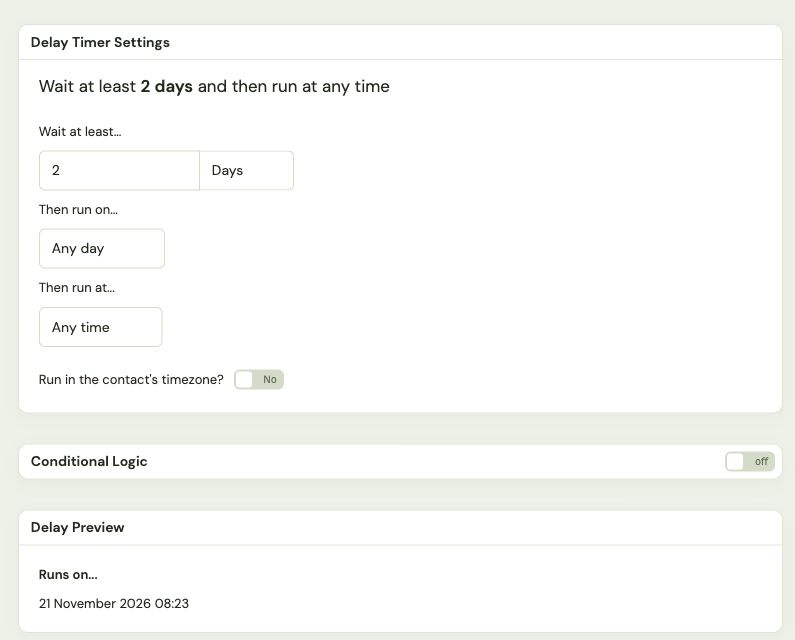
Delay Timer duration, run-time options and Delay Preview in the demo flow
Inspect the wait before diagnosing an email as late. The preview does not establish the contact’s scheduled send time.

Inspect Conditional Logic immediately before the message and any exit trigger. A sales handover or a changed quote status may correctly stop a reminder. The nurture handover guide shows why stopping can be the intended outcome.

Check existing activity before trying again

Read any recorded email name, time and status available on the contact. A recorded send does not prove inbox arrival, and no open does not prove non-delivery. Confirm the recipient address and ask the recipient to check their junk folder or inbox search for the sender and subject. If the result remains unclear, record the contact, flow, email, expected time and observed status before choosing the next action.

Use a demo-contact dry run to inspect the route without sending. Keep Dry run On; a simulation does not prove live delivery. The flow reporting guide helps trace waiting and stopped steps, while the email preparation guide covers message preview and test-send checks. A retry should follow a diagnosis so it does not repeat an acknowledgement or create another follow-up.

Keep going

Related guides

  • How to build a lead nurture flow that stops when sales takes over↗

    Use a sales-handover tag and a check before nurture emails to stop automated follow-up when a salesperson takes over the conversation.

  • How to build and test your first automation flow↗

    Build a trigger, email and delay in your Studiowide Marketing Automation & CRM system, then trace a demo contact through a dry-run simulation.

  • How to check a contact’s email subscription status↗

    Find a contact’s opt-in status, see how it affects email eligibility and check that unsubscribed contacts stay out of campaigns.

← Browse all guide topics

BEYOND DIGITAL

Beyond Digital

AI consultancy for marketing functions

Access Our Toolkit
Newsletter Form
Sign Up To Get The Latest Tools & Insights

By subscribing, you request the Studiowide newsletter. Read our privacy policy. This site is protected by reCAPTCHA and the Google Privacy Policy and Terms of Service apply.

Studiowide logo

Our marketing is built on smart strategies designed to help you hit your goals. Every step is purposeful and focused on delivering results that grow your business, connect with your audience, and build demand.

Quick Links
  • About
  • What We Do
  • Our Work
  • News & Insights
  • Toolkit
  • Guides
Get in Touch

Get in Touch Via WhatsApp

Studiowide Ltd, 16 Jordan Street, Liverpool. L1 0BP. Tel: 0151 708 5678 | hello@studiowide.co.uk

© 2026 Studiowide | Environmental Policy | Equal Opportunities Policy | T&C's | Privacy Policy
Manage Consent

We use cookies to keep our website running smoothly and, with your permission, understand how you use it. This helps us improve our content and make your visits more useful. You can choose which cookies to allow and change your preferences at any time.

Functional Always active
The technical storage or access is strictly necessary for the legitimate purpose of enabling the use of a specific service explicitly requested by the subscriber or user, or for the sole purpose of carrying out the transmission of a communication over an electronic communications network.
Preferences
The technical storage or access is necessary for the legitimate purpose of storing preferences that are not requested by the subscriber or user.
Statistics
The technical storage or access that is used exclusively for statistical purposes. The technical storage or access that is used exclusively for anonymous statistical purposes. Without a subpoena, voluntary compliance on the part of your Internet Service Provider, or additional records from a third party, information stored or retrieved for this purpose alone cannot usually be used to identify you.
Marketing
The technical storage or access is required to create user profiles to send advertising, or to track the user on a website or across several websites for similar marketing purposes.
  • Manage options
  • Manage services
  • Manage {vendor_count} vendors
  • Read more about these purposes
View preferences
  • {title}
  • {title}
  • {title}