

If a contact is missing from an email campaign audience, find the record outside that audience first. Then compare its tags, field values and subscription status with the exact include and exclude rules used by the campaign. In the Studiowide Marketing Automation & CRM system, a matching include rule does not override an exclusion.
Worked example: the same demo tag is included and excluded
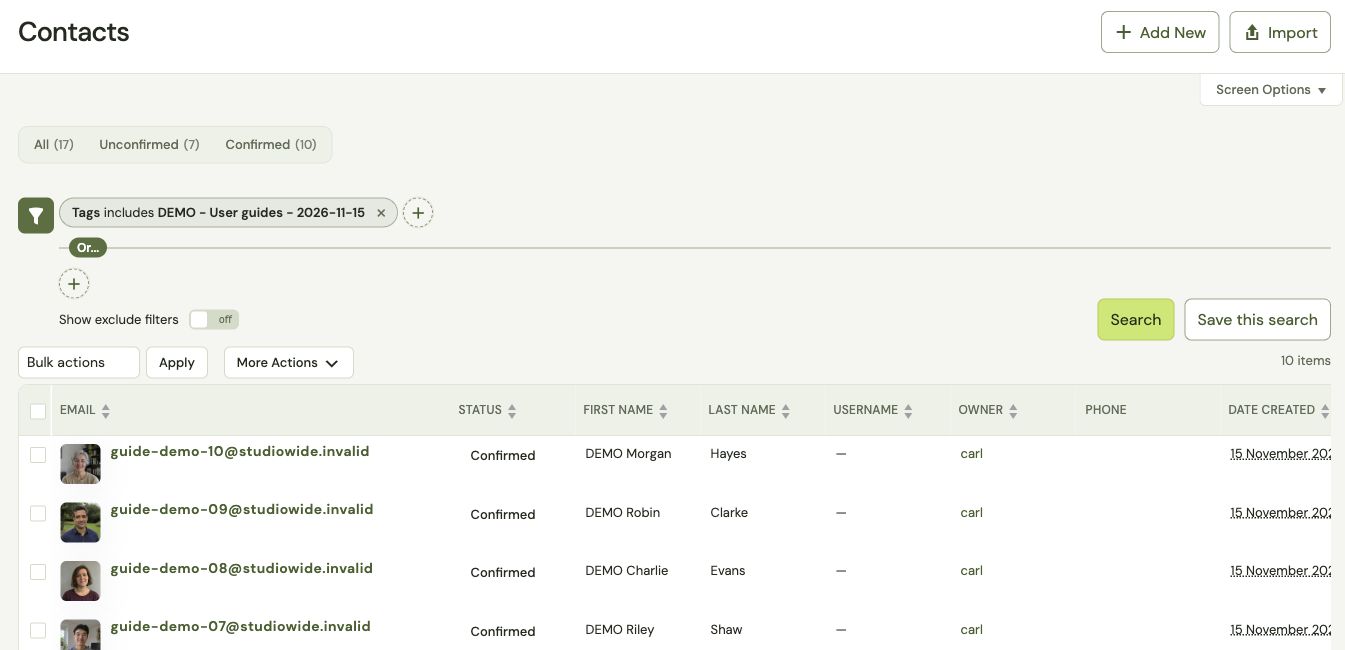
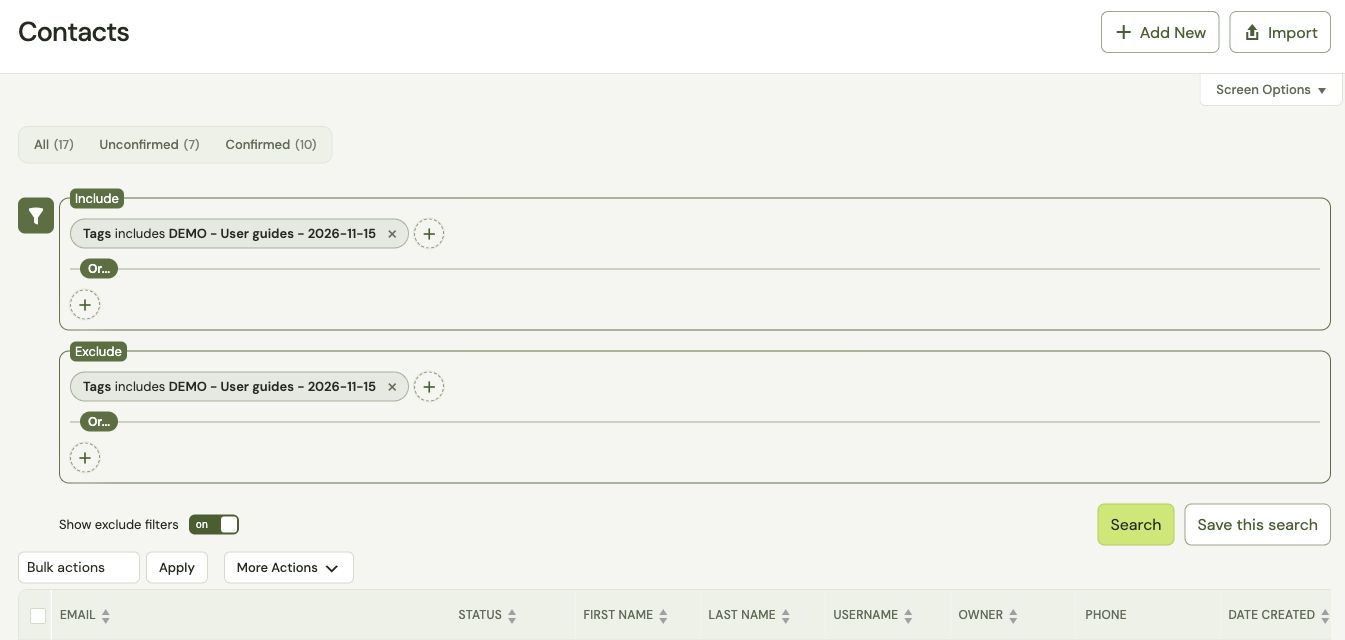
A diagnostic search includes the user-guide demo tag and returns ten demo contacts. Adding that same tag under Exclude reduces the result to zero. Alex still exists in Contacts and remains Confirmed; the conflicting audience rule explains the missing result. This is an intentionally conflicting, unsaved search using synthetic records. No contact status or saved campaign audience was changed.
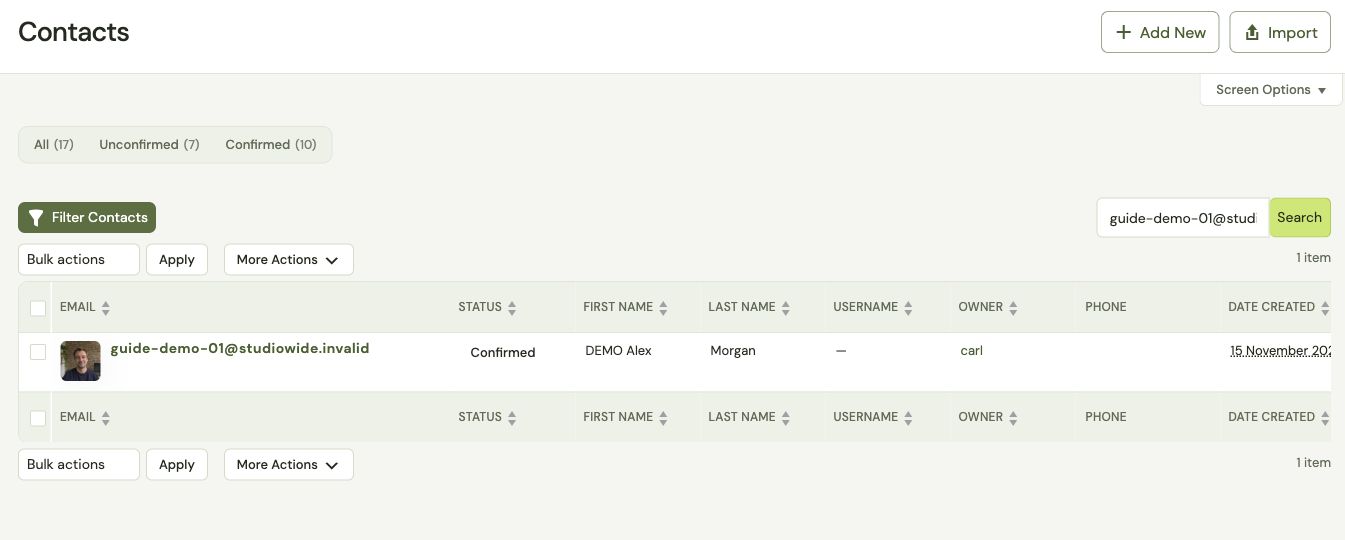
1. Find the contact outside the audience
- Open Contacts and use the name or email search to find the intended address independently of the campaign segment.
- Check that this is the same record the campaign should use. A person may have more than one email address, and a second record can have different tags or field values.
- Read the visible status and relevant tags. Check whether the person should receive this particular message before treating their absence as a mistake.
Use the subscription-status guide for status definitions and the duplicate-checking guide if you find another record.
2. Inspect the exact include rules
- Open the audience or saved search actually selected for the campaign. If you are building a diagnostic search in Contacts, choose Filter Contacts.
- Compare each required tag or field value with the contact. Check the actual stored value, rather than assuming that text in an enquiry message is a structured field.
- Check Any versus All when selecting tags. Check how conditions are grouped and where Or creates an alternative group.
- Apply the filter using its tick button. Use the Show … contacts button to open the current result set when it appears. The previously displayed table may still show an earlier search until you apply the new result.
3. Inspect exclusions before changing the record
- Turn Show exclude filters on. Read the conditions under Exclude as carefully as the include conditions.
- Check whether the contact matches any exclusion, such as an existing-customer group, a campaign-specific stop tag or another relevant condition.
- For the worked example, the same demo tag is in Include and Exclude. Choose Show 0 contacts to confirm that the result is empty.
- Identify whether an exclusion is incorrect for the campaign’s purpose or is deliberately protecting the audience. Keep valid suppression and subscription restrictions in place.
4. Check the campaign selection and the time of the check
Confirm that the broadcast uses the same audience you have just inspected. A contact’s current tags or status may differ from the values at an earlier send. A contact appearing in today’s search does not prove it was eligible when a previous campaign ran, and it does not add the person to an email already sent. Use the scheduling and status guide to inspect the campaign before taking another action.
Check the result and prevent the same problem next time
Record the specific rule and stored value that explain the result. If a rule needs correcting, review the resulting audience and a few example contacts before saving or using it. Do not add a duplicate contact, apply a misleading tag or change a subscription status to make the count fit an expectation.
Use the audience-building guide to save a reviewed segment and the tags and fields guide to keep the underlying data consistent. As the audience grows, give source tags, qualification values and campaign exclusions distinct purposes so a successful enquiry does not accidentally remove someone from useful follow-up.