
Studiowide Onovo
  • Home
  • About
  • What We Do
  • Our Work
  • News & Insights
  • Toolkit
  • Guides
  • Contact Us
Search

Explore our work, services, toolkit and insights.

Home/Guides/Marketing Automation

Studiowide Marketing Automation & CRM

Getting started

Your first five minutes in the CRM

Find a contact and a recent website enquiry in the CRM. Check who owns the contact, who’s assigned the next follow-up and when it’s due.

What you’ll achieve

Find an enquiry, confirm who owns the contact and see the next follow-up task.

On this page

  • 1. Find a contact
  • 2. Find and read a recent website enquiry
  • 3. Check who owns the contact
  • 4. Find the next follow-up task
  • Example of following up a demo website enquiry

In the Studiowide Marketing Automation & CRM system, use Contacts to find a person and Submissions to read a recent website enquiry. Open the linked contact record to check the Contact Owner, then open Tasks to see what’s due and who’s doing it.

Start from your own workspace. If you haven’t opened it yet, follow the guide to signing in and resetting your password.

1. Find a contact

  1. Select Contacts in the sidebar.
  2. Search for the person by name or email address. Use their full email address if several people have the same name.
  3. Open the matching contact and check the email address on the record. This is the record you’ll use to check who owns the relationship and what follow-up is due.

2. Find and read a recent website enquiry

If you cannot find the entry, use the missing website enquiry checks before creating another contact or asking for a repeat submission.

  1. Select Submissions in the sidebar to open Website submissions. The most recently received entries appear first.
  2. To narrow the list, enter a name or email address in the Contact filter, choose a Form or use Received from and Received to. Select Apply filters.
  3. Check the Received time and form name, then select View submission on the matching row. Read the Message and Submitted details. If someone has submitted more than once, check the date and form so you’re looking at the right message.
  4. In Submission record, select Open contact to go to the linked contact.

Open contact link in the Contact record panel for a demo enquiry.
In Submission record, select Open contact to go straight from the enquiry to the contact.

Opening a submission marks it as read for the workspace. Select Mark unread if it should return to the unread list.

If the enquiry doesn’t appear, select Clear filters and search again. Your account determines which contacts and submissions you can see.

3. Check who owns the contact

In the contact’s General tab, scroll to Contact Owner. This tells you who is responsible for the relationship. If the contact has no owner, check with your team before assuming someone else is handling the enquiry.

Contact Owner field set to Me.
The Contact Owner field shows who owns the relationship. Me means the contact is assigned to you.

4. Find the next follow-up task

Open Tasks on the same record. Look for an unfinished task that matches the enquiry and check its summary, Due Date and Assigned To. Start with any overdue follow-up for that enquiry, then check what’s due next.
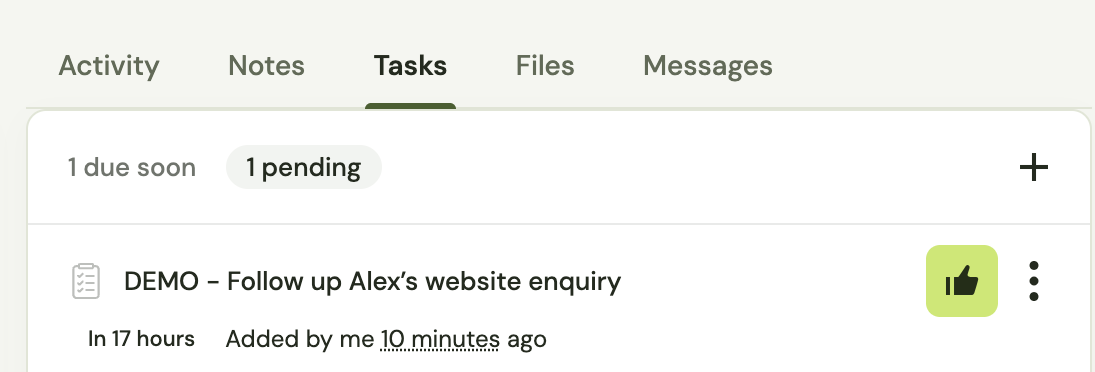
Tasks tab with a pending follow-up task for a demo website enquiry.
The demo contact has one pending follow-up. Use the task details to confirm who is assigned and when it’s due.

The task assignee can be a different person from the contact owner. A colleague might be covering a reply while the usual owner is away. If you can’t see a matching task, check the team’s agreed next action before sending a second reply.

Example of following up a demo website enquiry

In the demo, Alex asks for help improving how his team follows up on website enquiries. You open the submission, read the message and select Open contact. Under Tasks, you find the pending follow-up. It’s assigned to you and is due on 16 November at 10:00 UK time. The task gives you the next action to check before anyone replies.

If that task is already late, see how to handle an overdue website enquiry.

The navigation and control labels were checked against the Studiowide Marketing Automation & CRM system on 15 November 2026.

Keep going

Related guides

  • How to manage your website enquiries and follow-up tasks↗

    Find a website enquiry, check the assigned follow-up, then record the outcome and give the next action an owner and deadline.

  • How to sign in to your Studiowide Marketing Automation & CRM system↗

    Sign in using the workspace link supplied for your account, reset your password and solve common login problems.

← Browse all guide topics

BEYOND DIGITAL

Beyond Digital

AI consultancy for marketing functions

Access Our Toolkit
Newsletter Form
Sign Up To Get The Latest Tools & Insights

By subscribing, you request the Studiowide newsletter. Read our privacy policy. This site is protected by reCAPTCHA and the Google Privacy Policy and Terms of Service apply.

Studiowide logo

Our marketing is built on smart strategies designed to help you hit your goals. Every step is purposeful and focused on delivering results that grow your business, connect with your audience, and build demand.

Quick Links
  • About
  • What We Do
  • Our Work
  • News & Insights
  • Toolkit
  • Guides
Get in Touch

Get in Touch Via WhatsApp

Studiowide Ltd, 16 Jordan Street, Liverpool. L1 0BP. Tel: 0151 708 5678 | hello@studiowide.co.uk

© 2026 Studiowide | Environmental Policy | Equal Opportunities Policy | T&C's | Privacy Policy
Manage Consent

We use cookies to keep our website running smoothly and, with your permission, understand how you use it. This helps us improve our content and make your visits more useful. You can choose which cookies to allow and change your preferences at any time.

Functional Always active
The technical storage or access is strictly necessary for the legitimate purpose of enabling the use of a specific service explicitly requested by the subscriber or user, or for the sole purpose of carrying out the transmission of a communication over an electronic communications network.
Preferences
The technical storage or access is necessary for the legitimate purpose of storing preferences that are not requested by the subscriber or user.
Statistics
The technical storage or access that is used exclusively for statistical purposes. The technical storage or access that is used exclusively for anonymous statistical purposes. Without a subpoena, voluntary compliance on the part of your Internet Service Provider, or additional records from a third party, information stored or retrieved for this purpose alone cannot usually be used to identify you.
Marketing
The technical storage or access is required to create user profiles to send advertising, or to track the user on a website or across several websites for similar marketing purposes.
  • Manage options
  • Manage services
  • Manage {vendor_count} vendors
  • Read more about these purposes
View preferences
  • {title}
  • {title}
  • {title}